


Run Gemma 4 Locally on Your Phone or Desktop

Google Gemma 4, fully offline, fully private — with Kai.

Kai runs Google's Gemma 4 E2B and E4B models directly on your device using the LiteRT LM SDK. No API key, no cloud account, no monthly bill. Works on Android, macOS, Windows, and Linux.

Download Kai on the App Store Get Kai on Google Play Get Kai on F-Droid Use the Kai web app

Why run Gemma 4 locally?

Four reasons to run Google Gemma 4 on your own device instead of a cloud API.

🔒

Fully private

Your messages never leave the device. No prompts are sent to Google, OpenAI, or anyone else — not even to Kai.

✈️

Works offline

Once Gemma 4 is downloaded, inference runs entirely on-device. Use it on a plane, in a tunnel, or anywhere without signal.

💸

Free forever

Google's Gemma 4 is free. Kai is free and open-source. No subscription, no per-token billing, no credit card.

🔑

No API key

Install, download a model, chat. No signup, no keys to rotate, no account to manage.

Supported platforms and models

Kai runs Google Gemma 4 on-device on Android and desktop. iOS and the web build are not supported for on-device inference.

Model Size Default context Max context Best for
Gemma 4 E2B IT 2.58 GB 4K tokens 32K tokens Most phones and laptops — lighter, faster, lower RAM.
Gemma 4 E4B IT 3.65 GB 4K tokens 32K tokens Better quality when you have 8 GB+ RAM to spare.

Both models are .litertlm files from the litert-community organization on HuggingFace. GPU-first inference with automatic CPU fallback. The engine initializes in about 10 seconds on first use and automatically releases memory after 5 minutes of inactivity.

How to run Gemma 4 locally with Kai

Seven steps, about ten minutes including the model download.

1. Install Kai

Kai is available on Android (Google Play, F-Droid), desktop (macOS via Homebrew, Windows via Winget, Arch Linux via AUR), and as a downloadable release on GitHub. iOS users can install the app, but on-device Gemma 4 is not yet supported on iPhone — see platform limits below.
See all download options →

2. Open Settings and tap Add Service

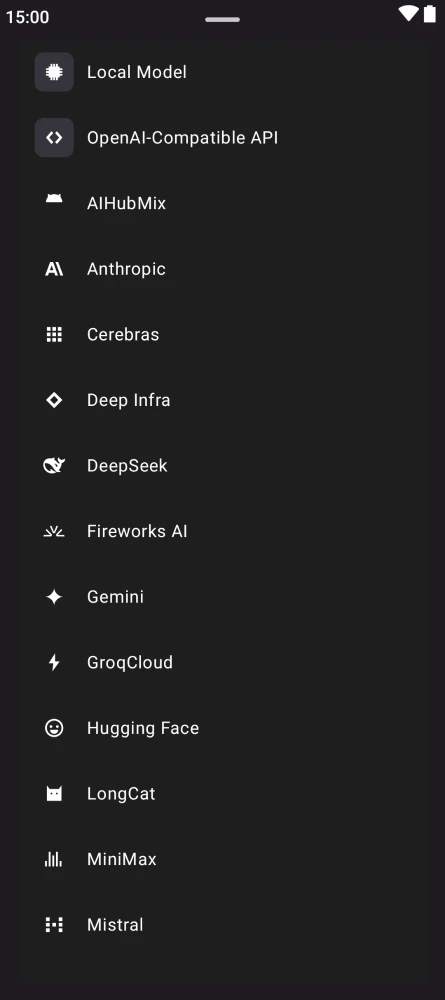
Open Kai, go to Settings → Services, and tap Add Service. In the list that slides up, pick Local Model — it's pinned to the top next to OpenAI-Compatible API. Kai will set up an on-device service that runs Gemma 4 via Google's LiteRT SDK.

Kai Add Service bottom sheet with Local Model (LiteRT) at the top of the provider list

3. Pick a model

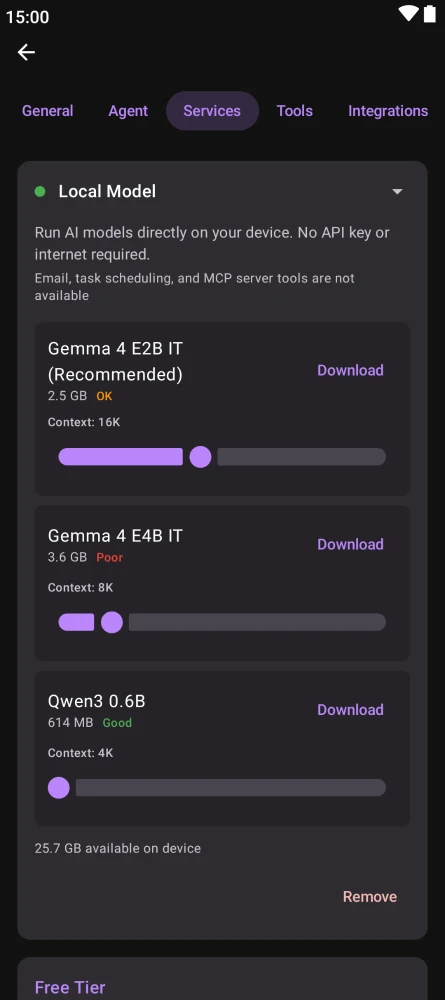
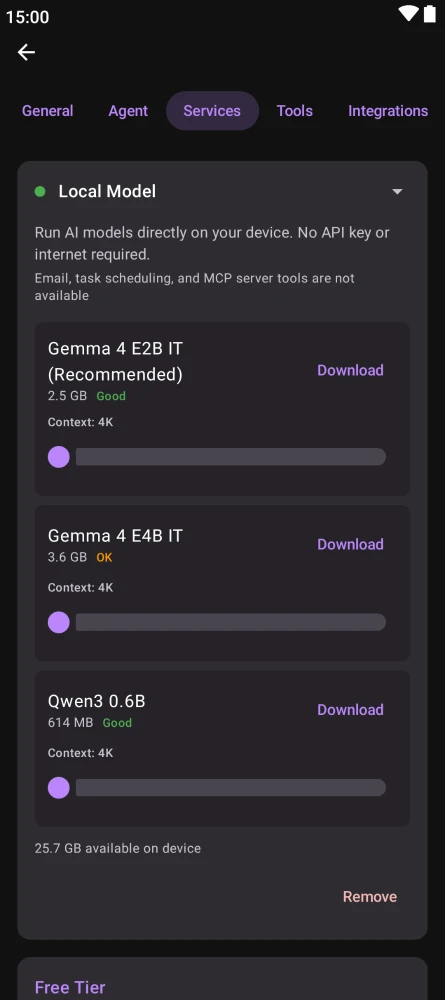
You'll see three models: Gemma 4 E2B IT (2.58 GB, recommended), Gemma 4 E4B IT (3.65 GB), and Qwen3 0.6B (586 MB). Kai shows a Good / OK / Poor label on each one based on your device's RAM and the context size you pick. On an 8 GB+ machine, E4B's quality is usually worth the extra memory. Qwen3 0.6B is chat-only — it can't reliably call Kai's tools.

LiteRT settings card showing Gemma 4 E2B IT (recommended), Gemma 4 E4B IT, and Qwen3 0.6B with size and download buttons

4. Adjust the context size (optional)

Each model has a slider to set the context window from 4K to 32K tokens in 1K steps. Bigger is not always better — larger contexts use more GPU memory and push the performance indicator toward OK or Poor. The slider is available before you download, so you can preview the memory impact first.

Context size slider ranging from 4K to 32K tokens with a performance indicator

5. Download the model

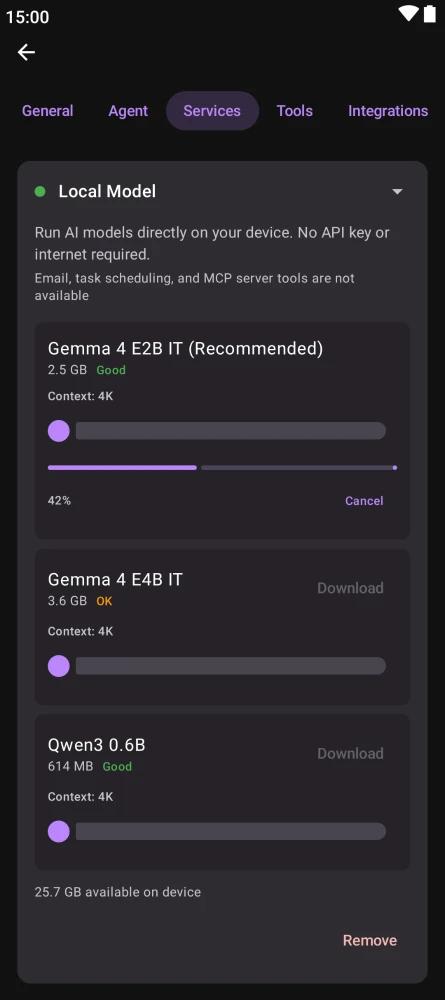
Tap Download. Kai validates that there's enough disk space first, then streams the model from HuggingFace's litert-community repo. On Android, downloads continue in a foreground notification if you leave the app. On desktop, downloads run in the background and you'll see progress in the settings card.

Gemma 4 model downloading with a progress percentage

6. Select it as the active model

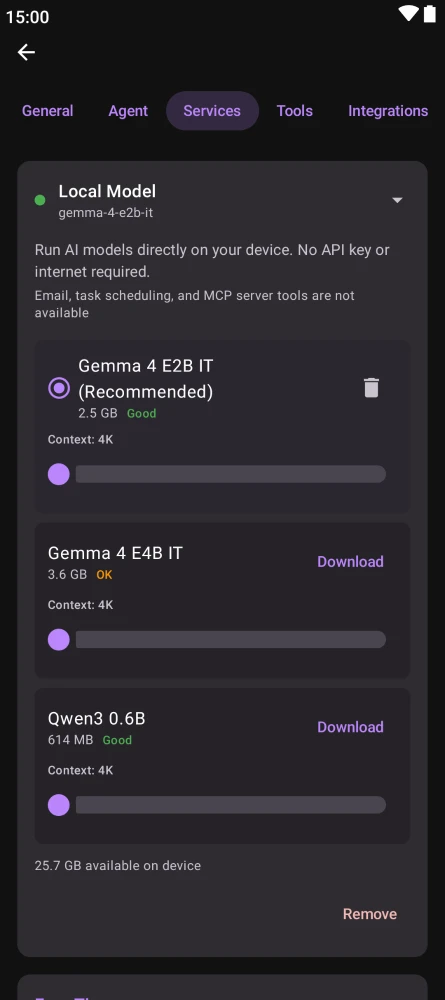
Once the download finishes, tap the radio button next to the model to make it the active on-device model for new chats.

Gemma 4 model card with the active-model radio button selected

7. Start chatting — fully offline

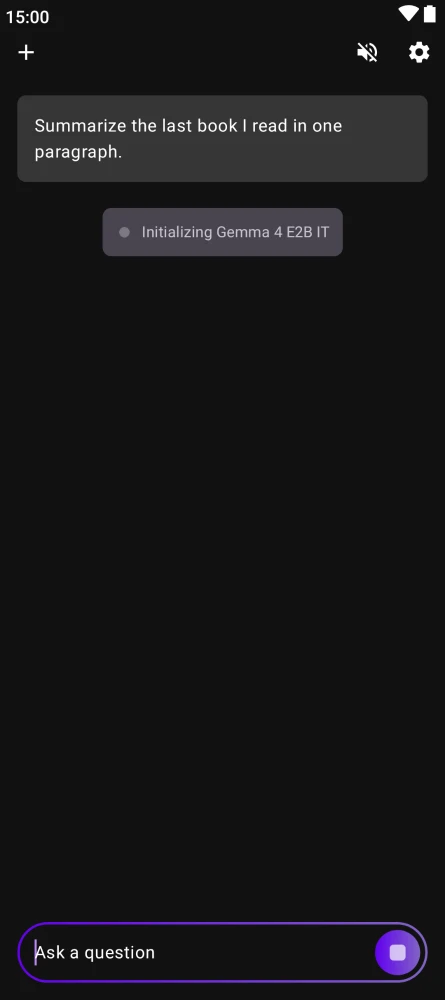
Open a new chat and send a message. The first message triggers engine initialization (~10 seconds) — you'll see an "Initializing Gemma 4" pulse. After that, replies stream directly from your GPU, with automatic CPU fallback if the GPU backend isn't available. The engine stays warm for 5 minutes of inactivity and then releases memory automatically.

Kai chat running Gemma 4 locally with a streaming response

What works on-device, what doesn't

Gemma 4 E2B and E4B are small models (2–4B parameters). Kai deliberately limits the surface area of on-device runs so small models don't fail in confusing ways.

Works on-device

  • Text chat with persistent memory
  • Local time and IP-based location
  • Web search and opening URLs
  • Storing, forgetting, and reinforcing memories
  • Shell commands (if you've enabled the shell tool in Settings)
  • GPU inference with automatic CPU fallback
  • Context sizes from 4K to 32K tokens

Requires a remote model

  • Image input (vision)
  • Interactive UI — the full-screen generative UI feature
  • MCP server tools
  • Scheduled tasks and email tools
  • Structured memory learning and heartbeat configuration
  • iOS and the web build — LiteRT ships Android and JVM only

If you need any of the remote-only features, configure a cloud provider (OpenAI, Gemini, Anthropic, Groq, Mistral, DeepSeek, xAI) alongside Gemma 4 — Kai's fallback chain will use Gemma 4 locally and fall back to a cloud model only when a feature requires it. Math output still renders beautifully regardless of provider — see native LaTeX math rendering on Android and desktop.

Gemma 4 local inference FAQ

Is Gemma 4 free?

Yes. Google releases Gemma 4 under an open license and Kai is free and open-source. No subscription, no API key, no cloud account.

Does Gemma 4 work offline?

Yes. Once the model is downloaded, inference runs fully on-device. You can use Kai with Gemma 4 in airplane mode.

Which devices can run Gemma 4 locally?

Android phones and macOS, Windows, or Linux desktops. On-device Gemma 4 is not available on iOS or in the browser — the LiteRT LM SDK targets Android and the JVM.

How much RAM do I need to run Gemma 4 locally?

Kai shows a Good / OK / Poor performance indicator per model. As a rule of thumb, Gemma 4 E2B (2.58 GB) runs well from around 6 GB of RAM and Gemma 4 E4B (3.65 GB) prefers 8 GB or more. The indicator takes your chosen context size into account before you download.

Is my data private when using Gemma 4 locally?

Yes. With on-device Gemma 4 your messages never leave the device. Model weights are stored locally and Kai's encrypted conversation storage applies as with any other service.

Get Kai and try Gemma 4 locally

Free. Open-source. No account.

Download Kai on the App Store Get Kai on Google Play Get Kai on F-Droid Use the Kai web app
Homebrew (macOS)
brew install --cask simonschubert/tap/kai
Winget (Windows)
winget install SimonSchubert.Kai
AUR (Arch Linux)
yay -S kai-bin